Quick start
From install to first protected request — in seven steps
Install LocalGuard, activate a license (or stay on Free), connect your AI agent, and watch secrets get stripped before they reach the provider. Total time: about five minutes. No code changes required.
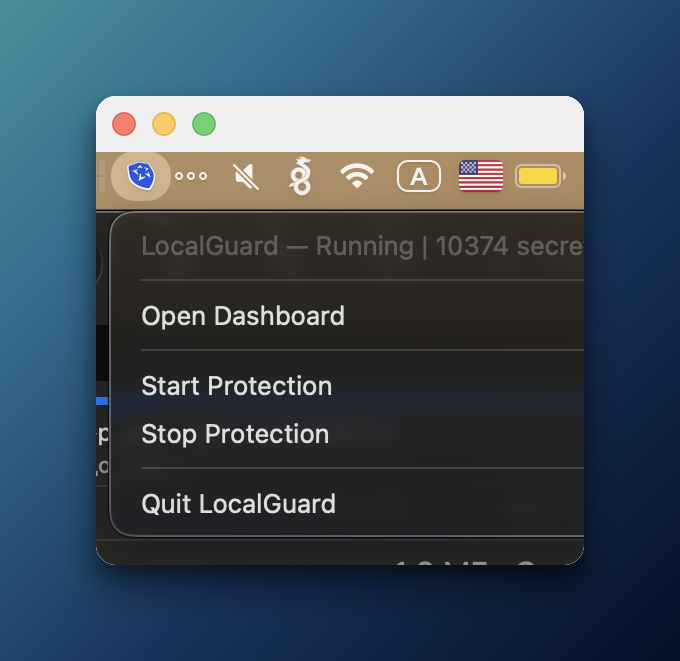
Install LocalGuard and look for it in the menu bar
Don't have LocalGuard yet? Grab the installer from the Download page — there's a build for macOS (.dmg), Windows (.exe) and Linux (.AppImage / .deb). After installing, launch the app: it lives quietly in your menu bar / system tray with a small shield icon. Click it any time to Open Dashboard, start or stop protection, or quit.
Tip: By default LocalGuard launches at login and starts protecting automatically — you don't need to do anything for protection to be on.
Activate your license (or skip on Free)
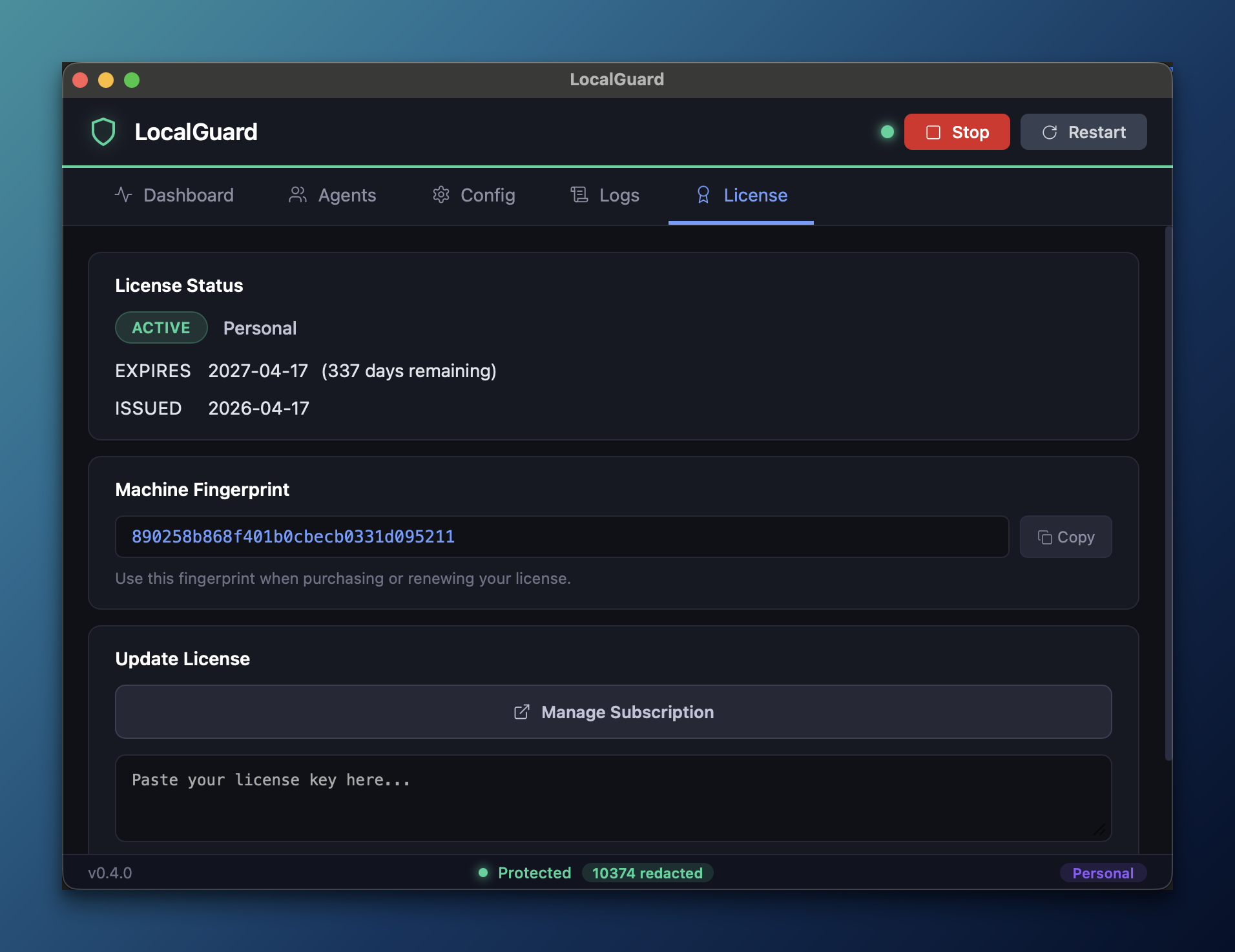
The free tier already protects your API keys, tokens, private keys, crypto wallets and IBAN — enough for most users. For full coverage (passwords, credit cards, emails, phone numbers, AI-powered name recognition) open the License tab, click Manage Subscription and pick a plan. After payment your key arrives by email — paste it into Paste your license key here… and hit Activate. The Machine Fingerprint on the same screen binds the license to your computer — you'll need it when buying or renewing.
Lost your key? Use the same machine fingerprint on Recover to get a freshly signed copy — the expiry date is preserved.
Pick a detection mode
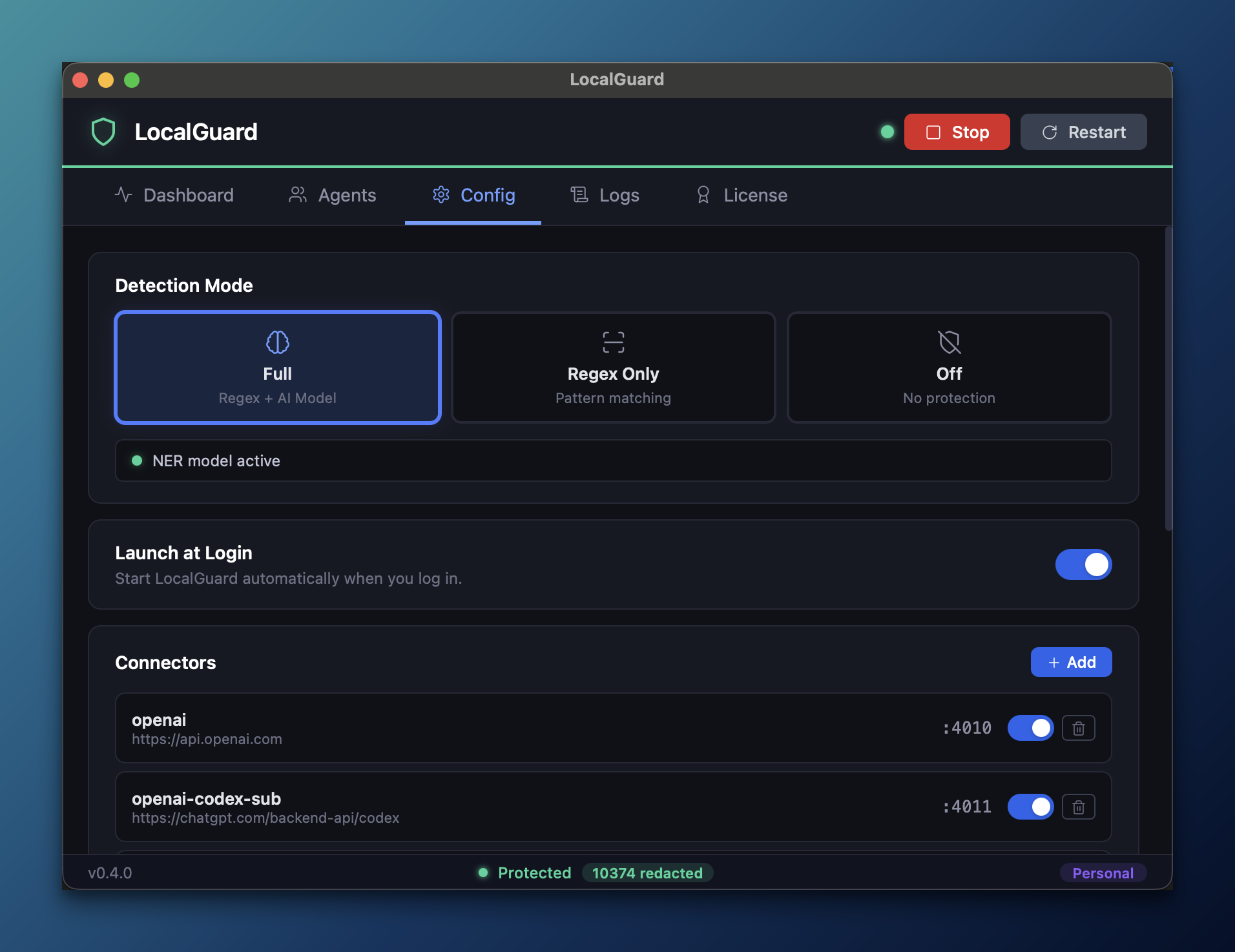
In Config → Detection Mode, choose how aggressively LocalGuard scans:
- Full — pattern matching backed by a small on-device AI model. Catches contextual entities (names, locations) that pure pattern matching misses. (default — recommended)
- Regex Only — pattern-based scanning only. Sub-millisecond overhead, ideal for low-latency setups.
- Off — LocalGuard stops masking anything; requests reach the provider exactly as you send them, secrets included. Useful for one-off debugging or comparing 'with protection / without'.
Tip: Launch at Login on the same screen makes LocalGuard start automatically on every reboot.
Run your AI agent through LocalGuard
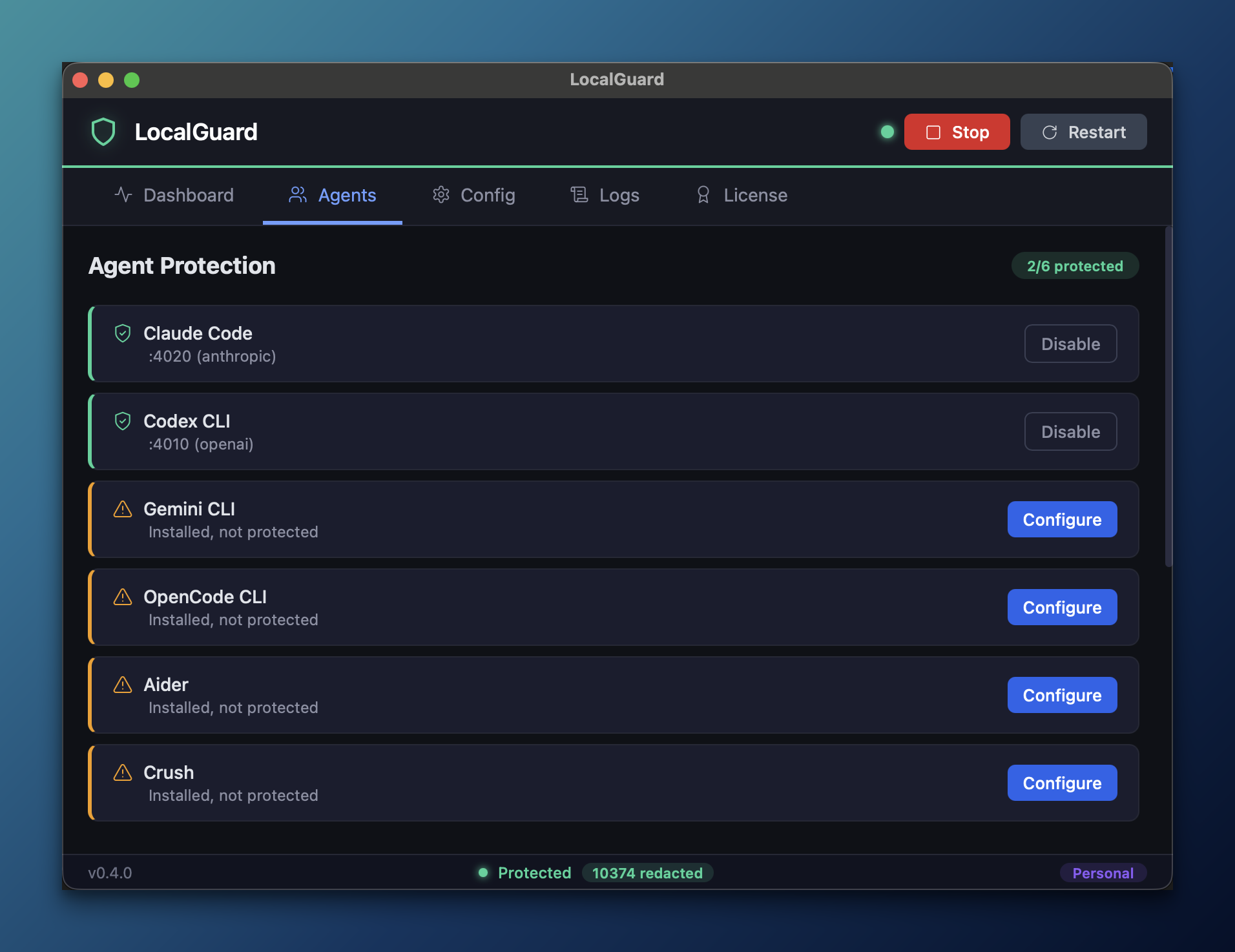
Open the Agents tab. LocalGuard detects installed AI clients on your machine — Claude Code, Codex CLI, Gemini CLI, OpenCode, Aider, Crush and more. Hit Configure next to any one and LocalGuard rewrites the agent's API endpoint to its local proxy port — no manual env-var editing, no SDK swaps.
Agent not on the list? Skip ahead to Step 7 — configure it manually. Agents installed but not yet configured show Installed, not protected; protected ones get a green shield and a Disable button.
Verify it's working — the Dashboard and Logs tabs
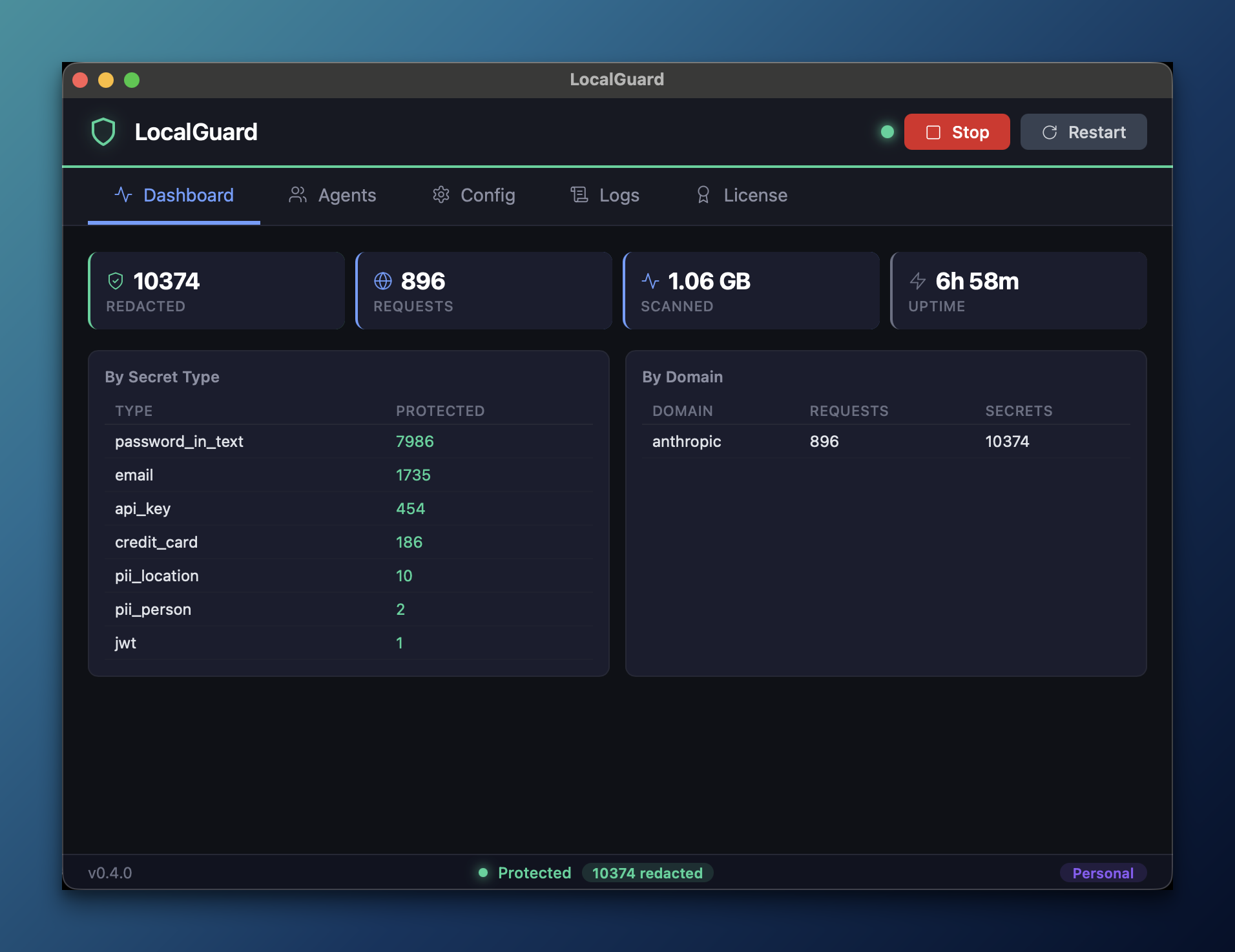
Start using your agent normally. The Dashboard shows live counters — total secrets redacted, requests proxied, bytes scanned, uptime — and breakdowns by secret type (API keys, passwords, emails, JWTs, PII) and by destination provider. Numbers ticking up = protection is working.
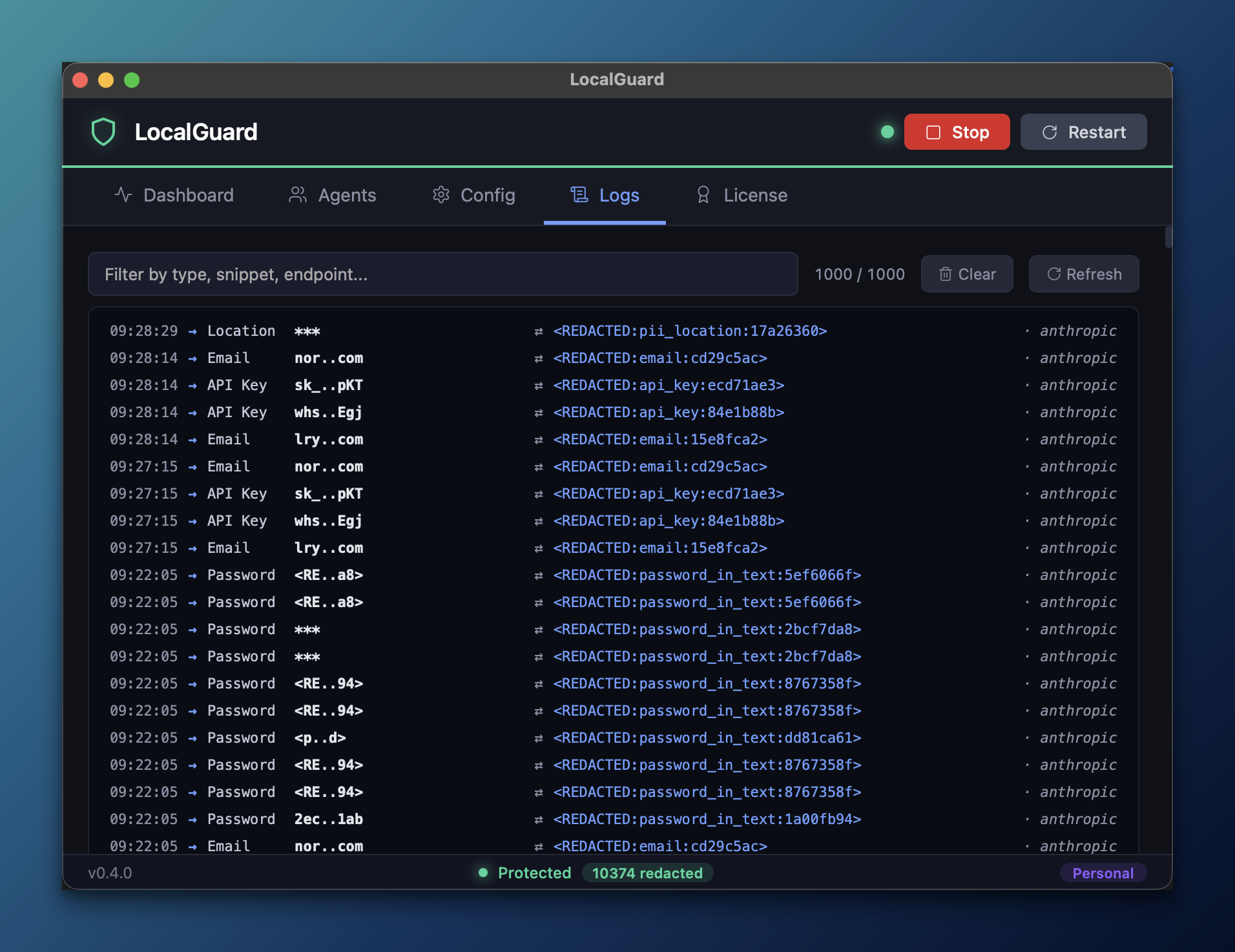
Want to see what got masked? Open the Logs tab. Each row is a real masking event — the original snippet on the left (truncated for safety), the placeholder it was replaced with on the right, plus the name of the agent that sent it. The filter narrows results by type, snippet or endpoint.
Optional: add a custom connector
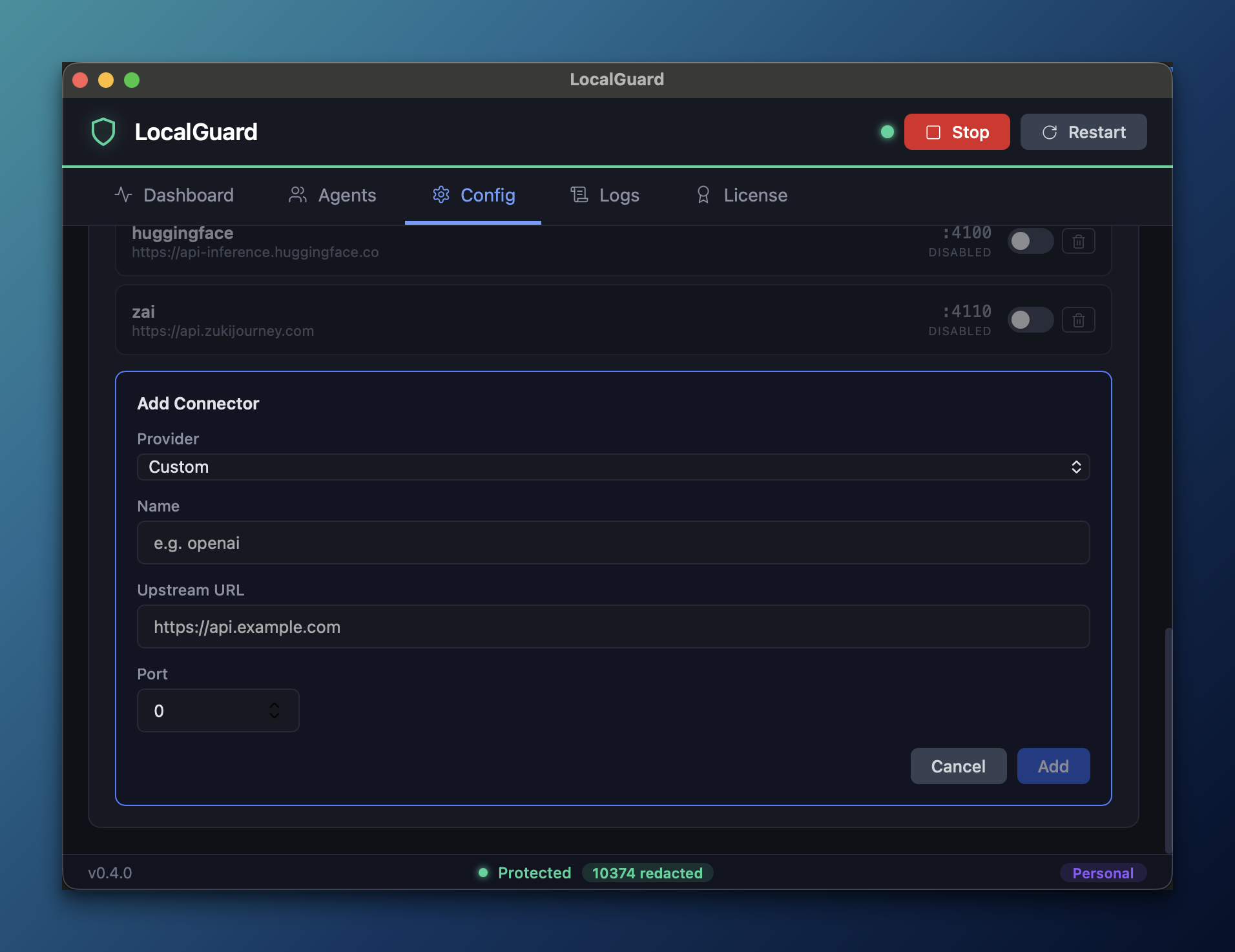
Using a provider LocalGuard doesn't ship a built-in connector for? Open Config → Connectors and click + Add. Fill in a name, the upstream URL of the real API, and a local port. LocalGuard exposes http://127.0.0.1:<port>; point your agent at that address and the flow becomes: your request → LocalGuard (scan & mask) → upstream provider → response → your unmasked request (placeholders restored locally).
Anything HTTP works: custom internal LLM gateway, on-prem inference server, third-party providers like Hugging Face Inference, Together, zai, OpenRouter — anything that speaks HTTP and accepts a Bearer token.
Or configure an agent manually
Prefer editing config files yourself, or using an agent that's not on the Agents tab? Two steps:
1. Find the local port in LocalGuard. Open Config → Connectors. Each connector shows its local port on the right (:4010, :4020, :4060, etc.). That's the address you'll point your agent at.
2. Edit the agent's config. Most AI tools have one setting that controls where API calls go — an API base URL. Replace it with LocalGuard's local URL. Here are three common ones:
-
Claude Code
~/.claude/settings.json{ "env": { "ANTHROPIC_BASE_URL": "http://127.0.0.1:4020" } } -
Codex CLI
~/.codex/config.toml[providers.openai] base_url = "http://127.0.0.1:4010/v1" -
Aider
~/.aider.conf.ymlopenai-api-base: http://127.0.0.1:4010/v1
Restart the agent. From now on it talks to LocalGuard; LocalGuard scans the payload, redacts secrets, then forwards the cleaned request upstream — and restores the original values when the response comes back.
Default ports: OpenAI-compatible providers :4010, Anthropic :4020, Gemini :4060. Custom connectors you add yourself show their port next to their name on the Config tab.
On Windows: ~/ expands to %USERPROFILE%\ (e.g. C:\Users\yourname\.claude\settings.json). Most agents understand both notations directly.
You're set
Every AI request now passes through LocalGuard before it leaves your machine. Secrets are stripped, the provider sees only safe placeholders, and your tool gets the answer back as if nothing changed.